> ## Documentation Index
> Fetch the complete documentation index at: https://doc.locox.net/llms.txt
> Use this file to discover all available pages before exploring further.

# Shadowrocket 教程

<Note>
  Shadowrocket 是付费软件，国区 App Store 已下架。如果你觉得好用，请付费支持开发者。
</Note>

## 1. 下载与安装

登录外区 Apple ID 后，在 App Store 搜索并下载 Shadowrocket：

[Shadowrocket - App Store](https://apps.apple.com/us/app/shadowrocket/id932747118)

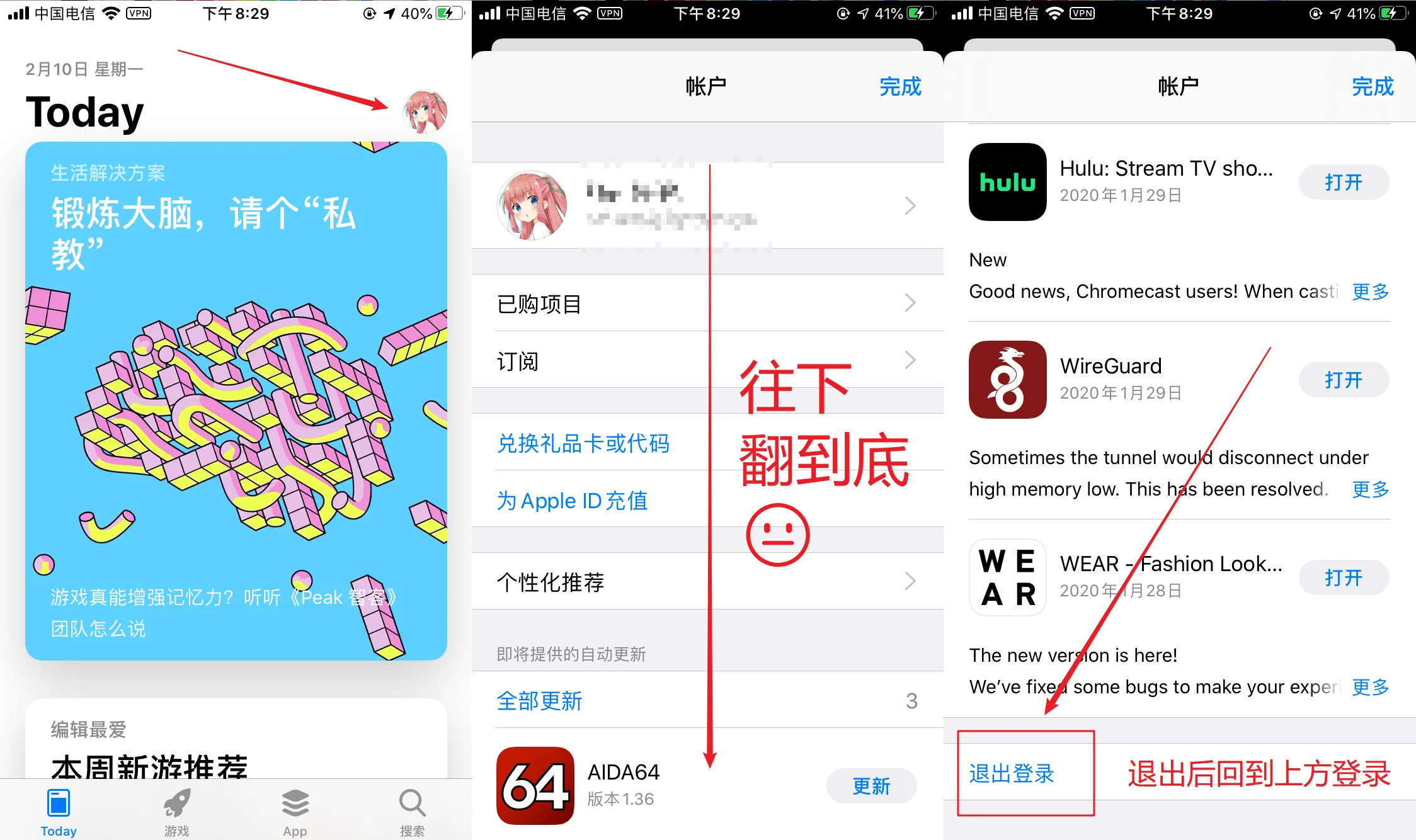
如何退出 App Store 账号：

<Frame>
  <img src="https://mintcdn.com/w4/XaUIh_-g9uWGIS-d/images/ios/shadowrocket/appstore-logout.png?fit=max&auto=format&n=XaUIh_-g9uWGIS-d&q=85&s=482d2c696d4921d9b7c945ba77a8dbd3" width="2248" height="1334" data-path="images/ios/shadowrocket/appstore-logout.png" />
</Frame>

<Warning>
  退出后，回到顶部，登录共享账号。<br />
  共享账号在官网内部教程查看。<br />
  请不要用共享号登录 iCloud，仅在 App Store 登录即可。<br />
  安装完毕请换回自己的账号。
</Warning>

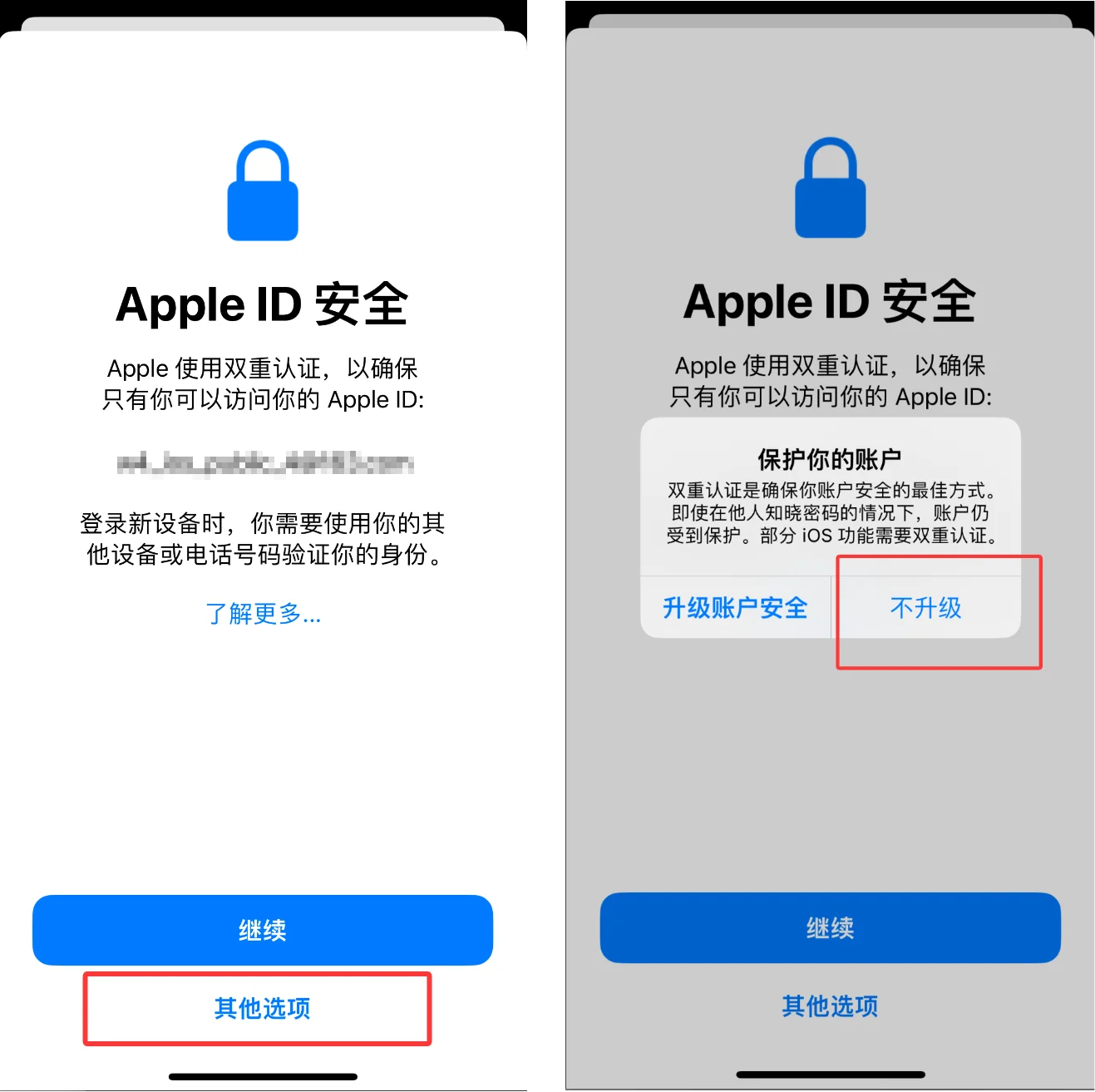
登录过程中如提示两步验证，选择【其他选项】-【不升级】

<Frame>
  <img src="https://mintcdn.com/w4/XaUIh_-g9uWGIS-d/images/ios/shadowrocket/two-factor.png?fit=max&auto=format&n=XaUIh_-g9uWGIS-d&q=85&s=8fad9322259d196975e8ae73489dc745" width="1317" height="1313" data-path="images/ios/shadowrocket/two-factor.png" />
</Frame>

## 2. 导入节点

#### 方式A：一键导入（推荐）

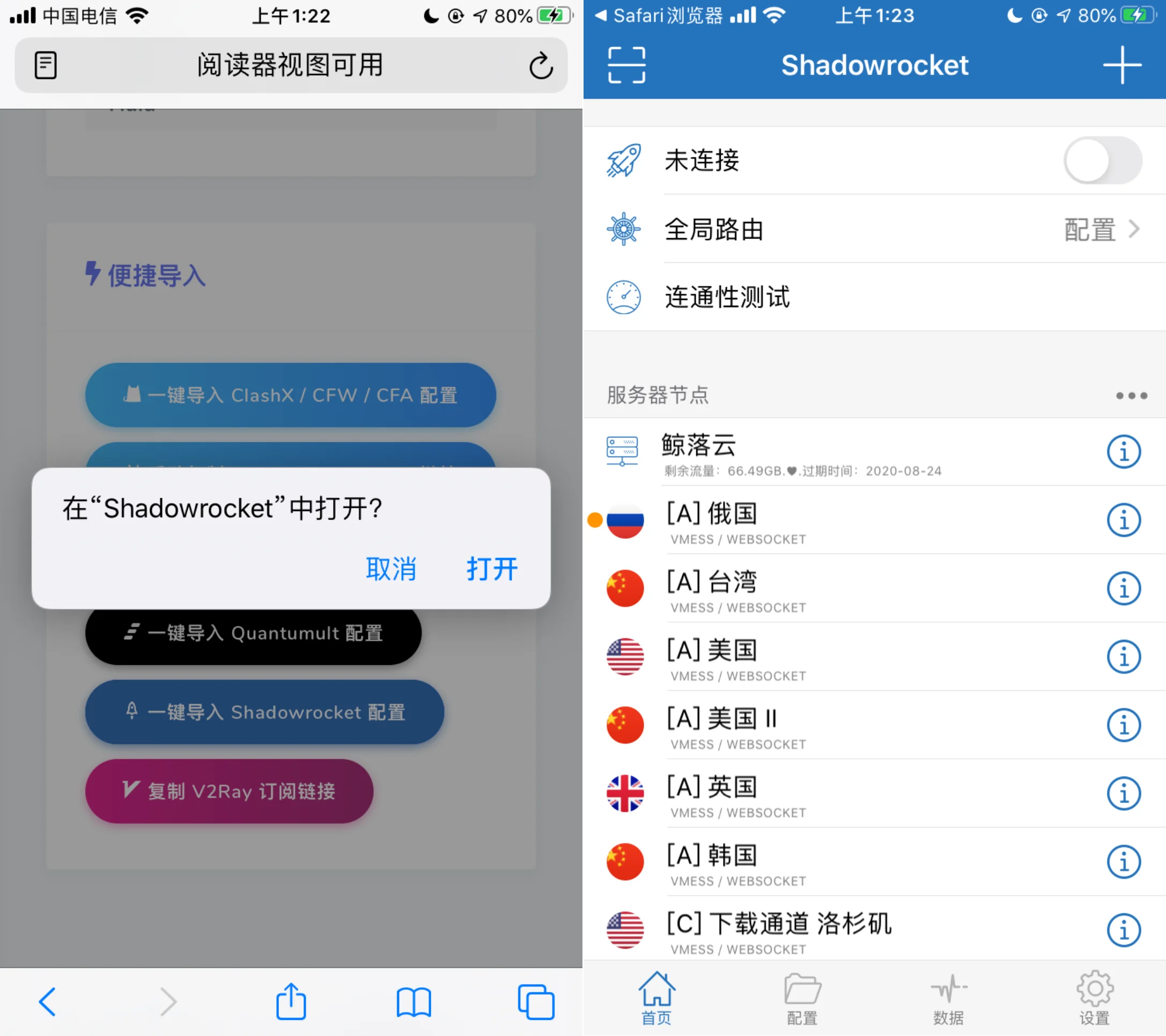
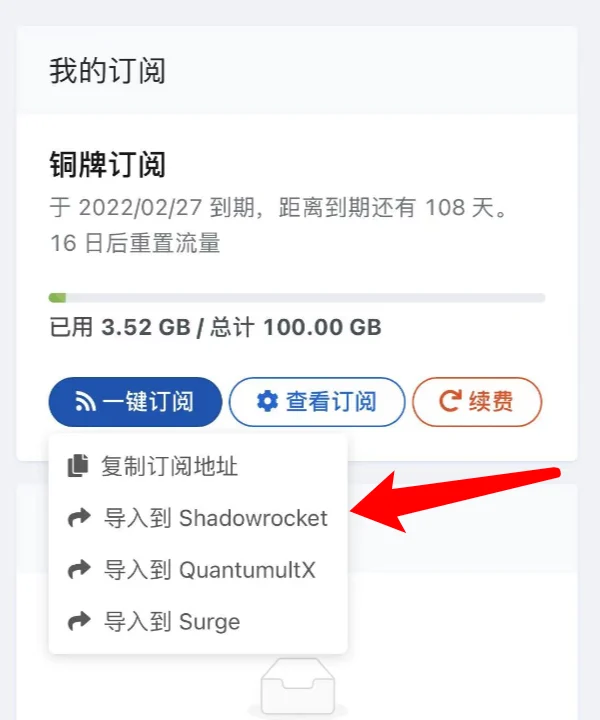
1. 在 Safari 中登录官网

2. 点击「一键订阅」-「导入到 Shadowrocket」
<Frame>
  <img src="https://mintcdn.com/w4/XaUIh_-g9uWGIS-d/images/ios/shadowrocket/one-click-import.png?fit=max&auto=format&n=XaUIh_-g9uWGIS-d&q=85&s=5c38659c641439941d83927661d4bf0f" width="600" height="720" data-path="images/ios/shadowrocket/one-click-import.png" />
</Frame>

3. 浏览器提示是否在 Shadowrocket 中打开，点击「打开」

4. 节点导入完成

<Frame>
  <img src="https://mintcdn.com/w4/XaUIh_-g9uWGIS-d/images/ios/shadowrocket/import-result.png?fit=max&auto=format&n=XaUIh_-g9uWGIS-d&q=85&s=8d42d74aefd6d4511169b817652439c4" width="2174" height="1932" data-path="images/ios/shadowrocket/import-result.png" />
</Frame>

#### 方式B：手动导入订阅链接

<Note>如果已通过方式A导入成功，可跳过此步骤。</Note>

1. 在官网点击「一键订阅」-「复制订阅链接」

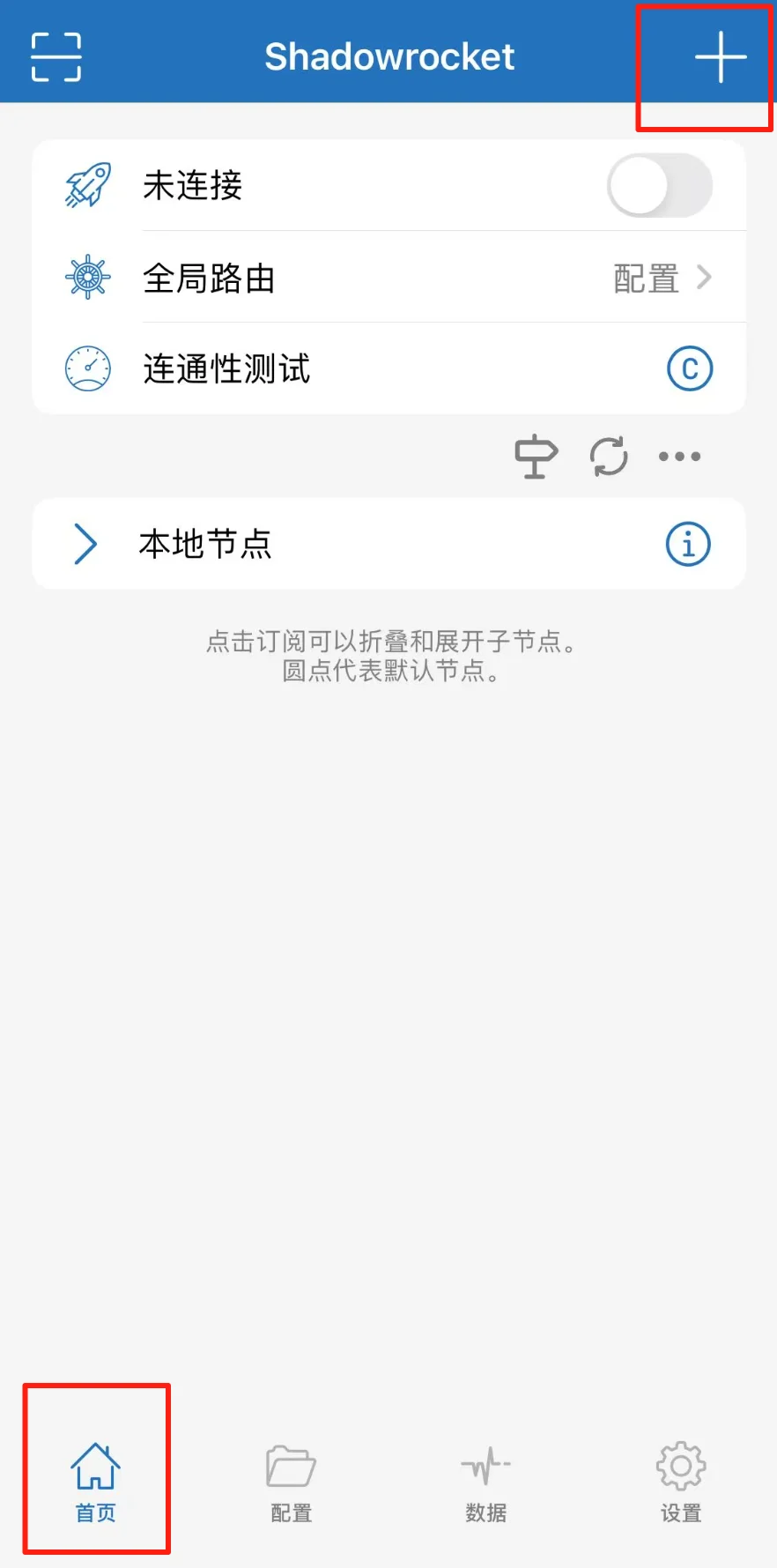
2. 打开 Shadowrocket，点击右上角 **+** 号

<Frame>
  <img src="https://mintcdn.com/w4/XaUIh_-g9uWGIS-d/images/ios/shadowrocket/add-button.png?fit=max&auto=format&n=XaUIh_-g9uWGIS-d&q=85&s=723c9801d95ce05f5abe94a3745d3dee" width="882" height="1779" data-path="images/ios/shadowrocket/add-button.png" />
</Frame>

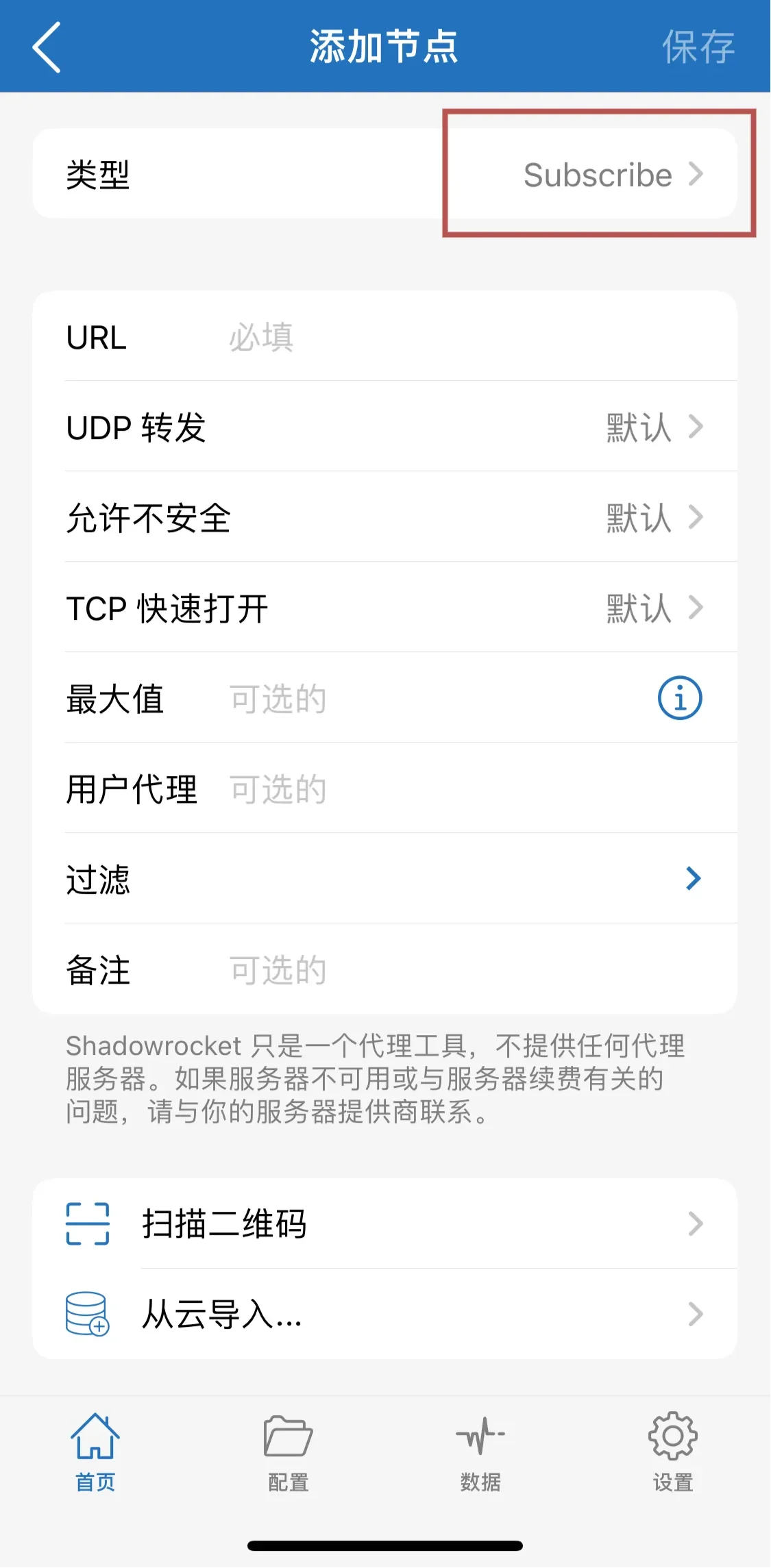
3. 类型选择 **Subscribe**，在 URL 中粘贴订阅链接，备注填写「鲸落云」，点击保存

<Frame>
  <img src="https://mintcdn.com/w4/XaUIh_-g9uWGIS-d/images/ios/shadowrocket/subscribe-form.png?fit=max&auto=format&n=XaUIh_-g9uWGIS-d&q=85&s=cca84d2c87053ea764dc392cff483e77" width="1125" height="2289" data-path="images/ios/shadowrocket/subscribe-form.png" />
</Frame>

## 3. 同步节点（重要）

<Note>
  我们会不时维护、更换节点。如果没有设置更新，你可能会发现很多节点无法连接。
</Note>

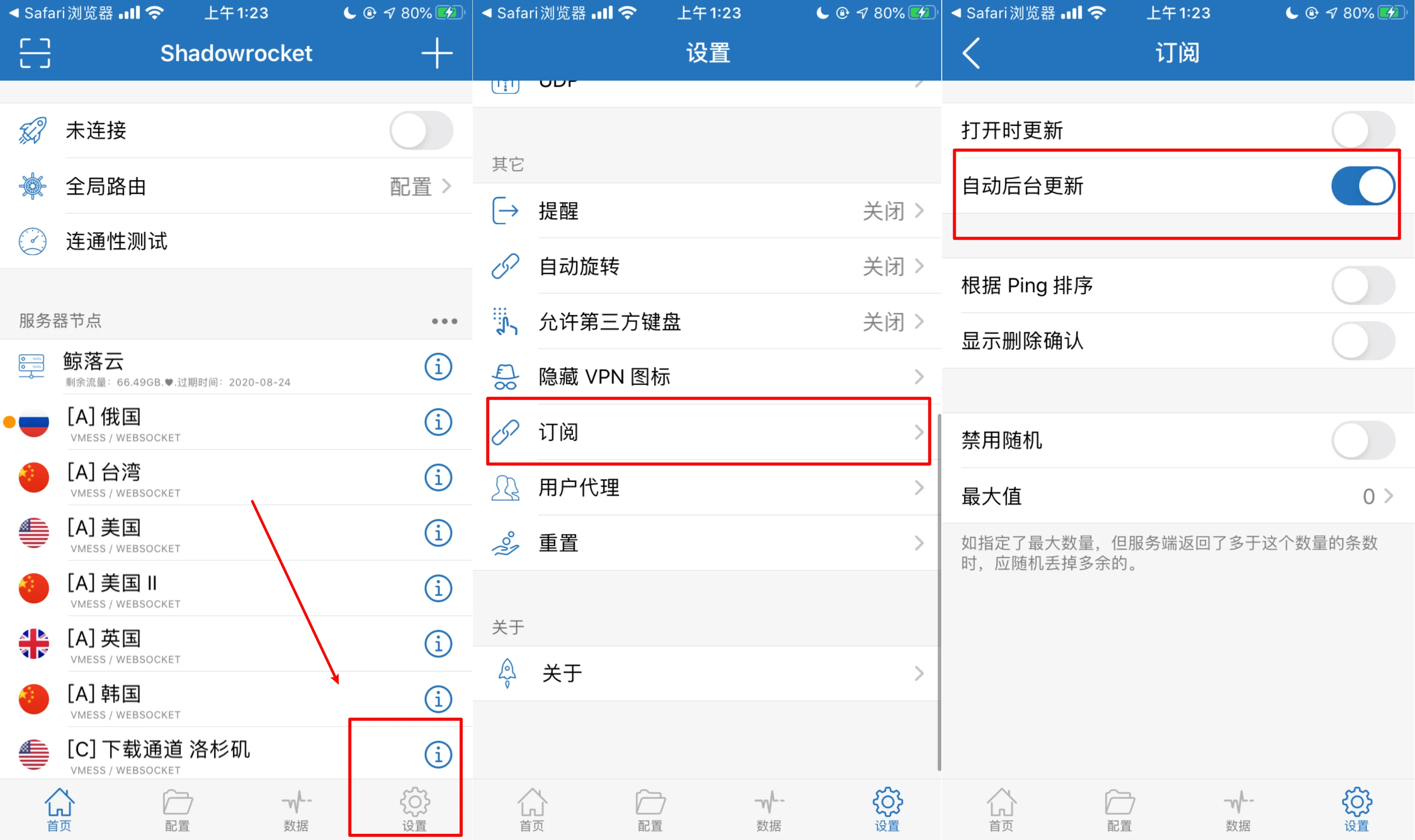
**设置自动更新：** 设置 → 订阅 → 开启「自动后台更新」

<Frame>
  <img src="https://mintcdn.com/w4/XaUIh_-g9uWGIS-d/images/ios/shadowrocket/auto-update.png?fit=max&auto=format&n=XaUIh_-g9uWGIS-d&q=85&s=e4c08127c093a2ec030d38134746c8df" width="3253" height="1932" data-path="images/ios/shadowrocket/auto-update.png" />
</Frame>

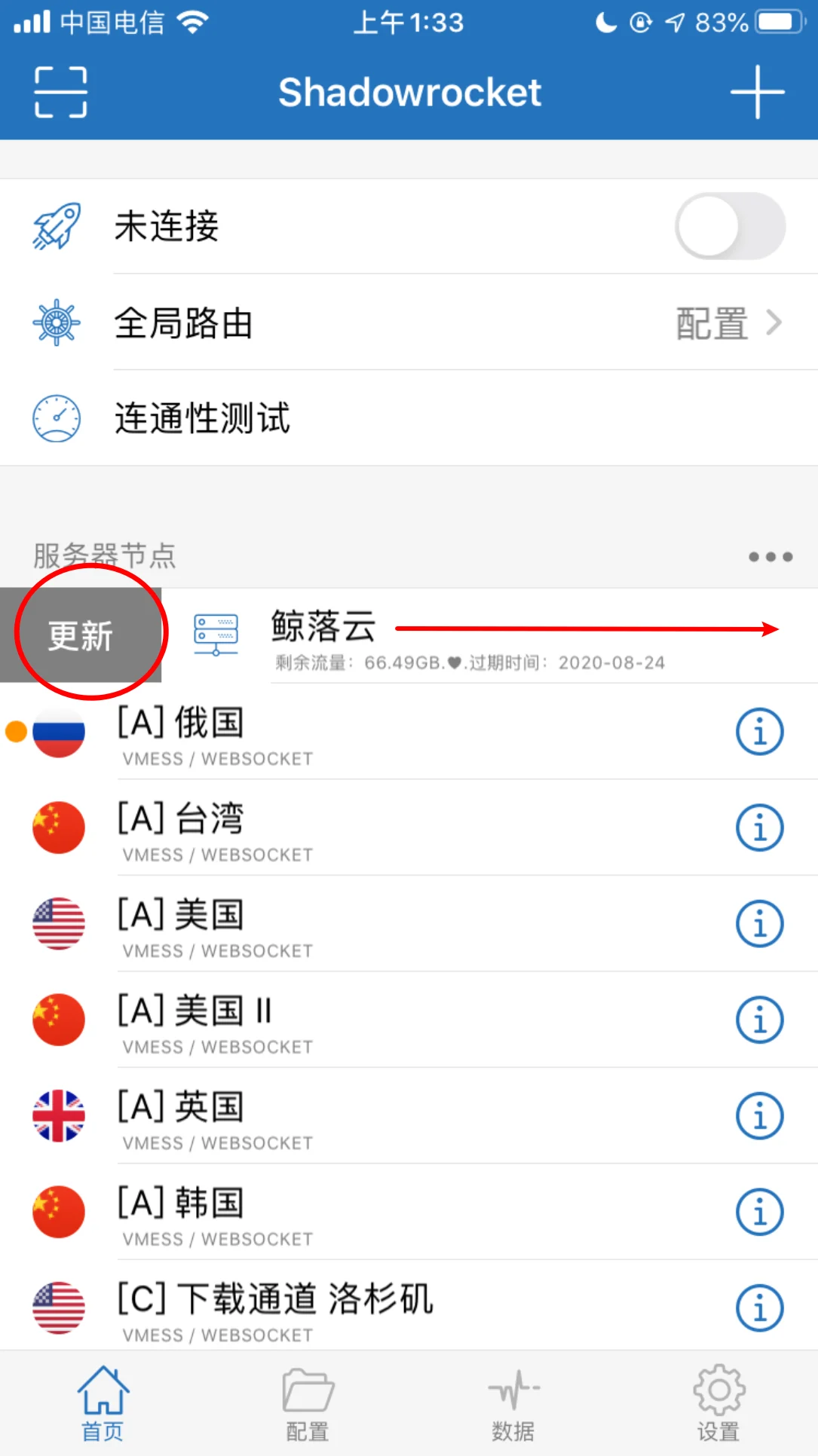
**手动更新：** 在首页向右滑动「鲸落云」，点击更新即可

<Frame>
  <img src="https://mintcdn.com/w4/XaUIh_-g9uWGIS-d/images/ios/shadowrocket/manual-update.png?fit=max&auto=format&n=XaUIh_-g9uWGIS-d&q=85&s=b62a74dadbea25524c81276a14125fd3" width="1085" height="1932" data-path="images/ios/shadowrocket/manual-update.png" />
</Frame>

<Note>自动更新大约每一两天执行一次。如需立即同步，先关闭开关再手动更新。</Note>

## 4. 选择节点

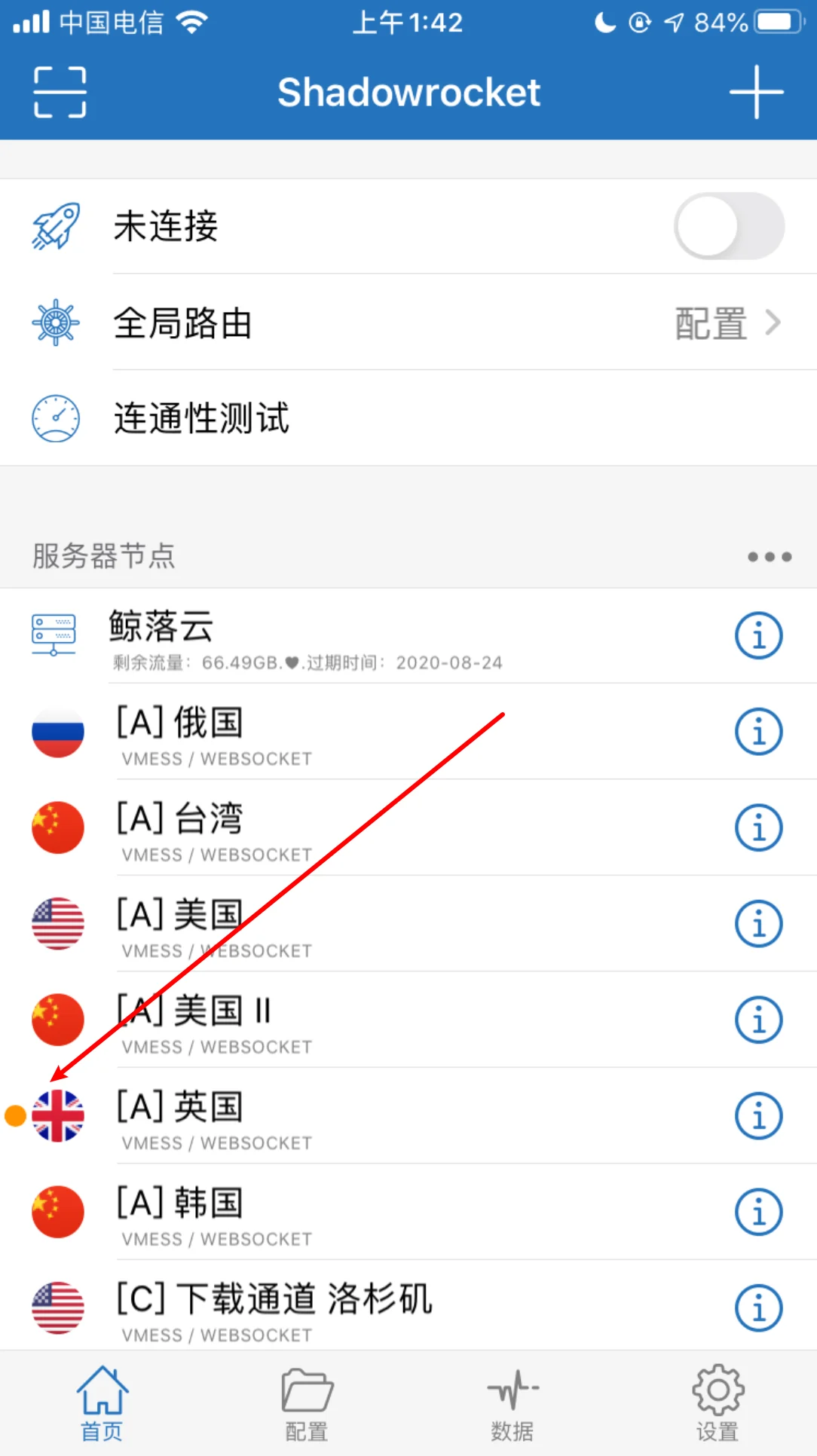
点击节点列表中你想使用的线路，选中后前面会出现橙色圆点

<Frame>
  <img src="https://mintcdn.com/w4/XaUIh_-g9uWGIS-d/images/ios/shadowrocket/select-node.png?fit=max&auto=format&n=XaUIh_-g9uWGIS-d&q=85&s=4bed496faa6bc6743ee976b09d49e55b" width="1084" height="1932" data-path="images/ios/shadowrocket/select-node.png" />
</Frame>

## 5. 检测节点

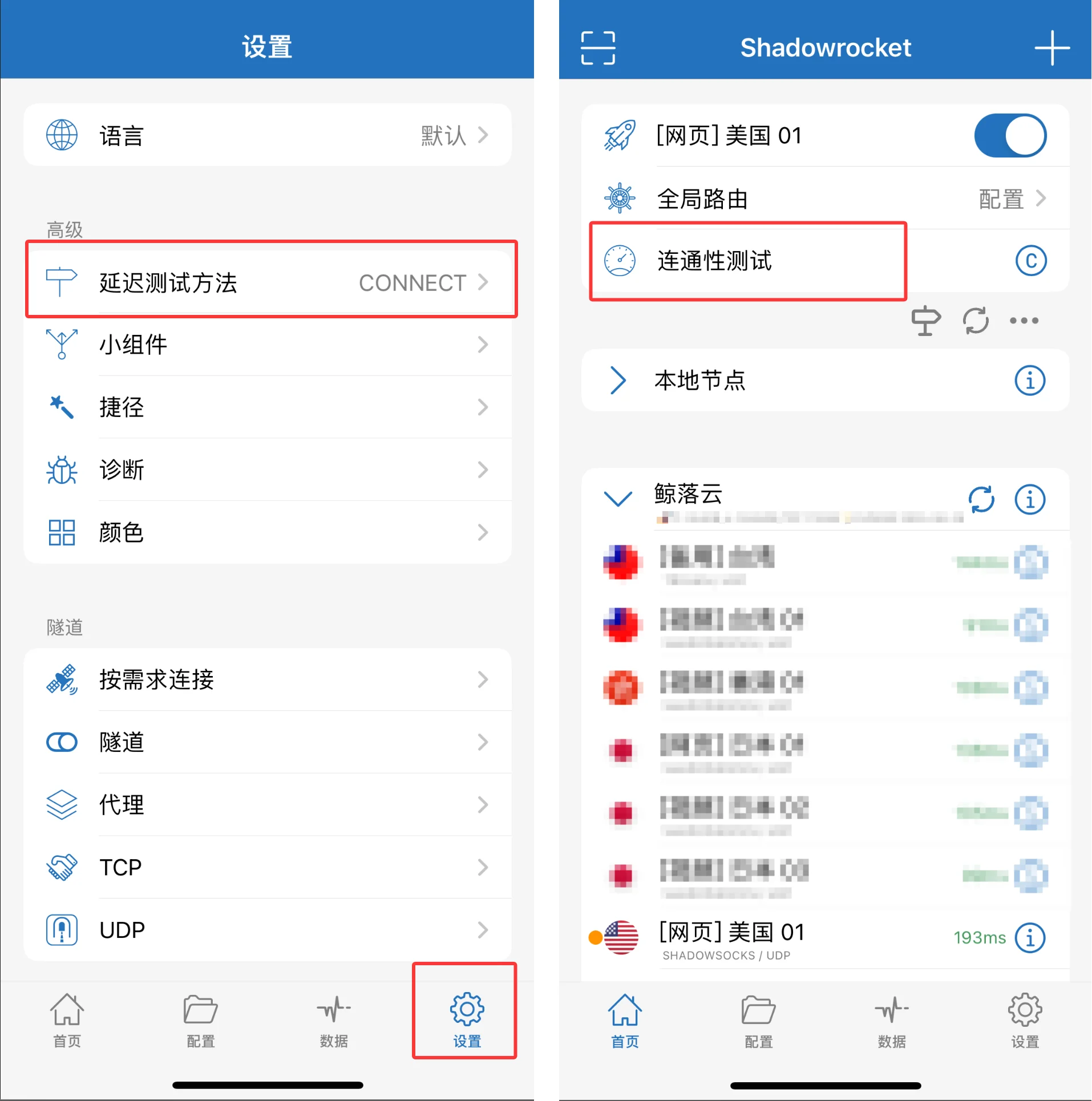
1. 进入 设置 → 延迟测试方法 → 选择 **Connect**

2. 回到首页，点击「连通性测试」

3. 绿色数字表示节点正常，红色「超时」表示节点不可用

<Frame>
  <img src="https://mintcdn.com/w4/XaUIh_-g9uWGIS-d/images/ios/shadowrocket/connectivity-test.png?fit=max&auto=format&n=XaUIh_-g9uWGIS-d&q=85&s=d07c10783d46d46eb3cf2db4f4a06e19" width="1914" height="1930" data-path="images/ios/shadowrocket/connectivity-test.png" />
</Frame>

## 6. 开始使用

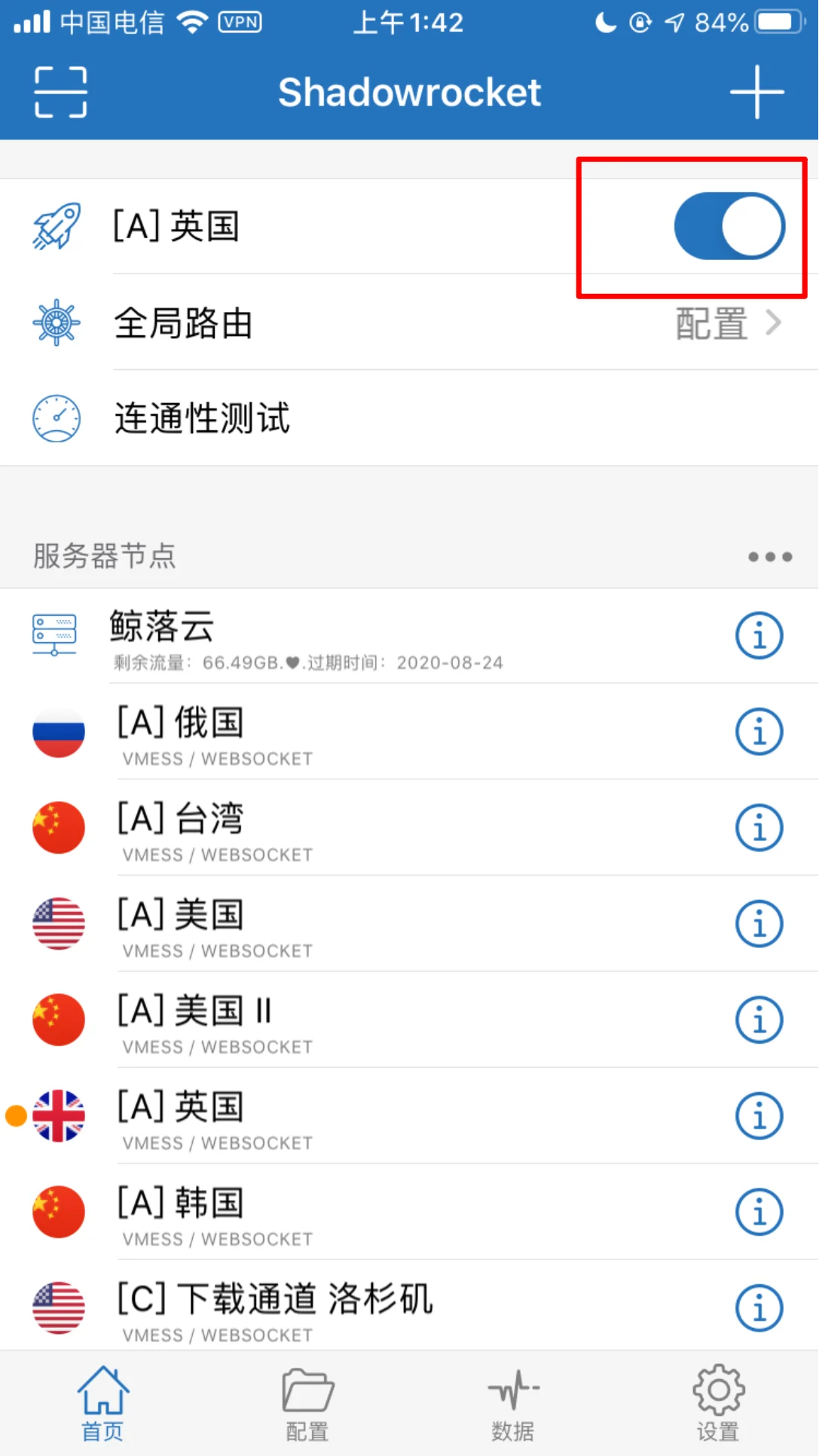
打开首页顶部的开关即可。第一次使用会询问 VPN 权限，选择 **Allow**。

<Frame>
  <img src="https://mintcdn.com/w4/XaUIh_-g9uWGIS-d/images/ios/shadowrocket/allow-vpn.png?fit=max&auto=format&n=XaUIh_-g9uWGIS-d&q=85&s=97a56662bf611ba6bce195bc53c06a3d" width="1087" height="1932" data-path="images/ios/shadowrocket/allow-vpn.png" />
</Frame>


This documentation is built and hosted on [Mintlify](https://mintlify.com), a developer documentation platform.